
Steam image sizes: every capsule, library and event asset, with templates
6 min read
By Eduardo Orellana ·
Steam's required store images are the header capsule (920 x 430), small capsule (462 x 174), main capsule (1232 x 706), vertical capsule (748 x 896) and at least five screenshots (1920 x 1080 or larger, 16:9); the page background (1438 x 810) is optional. The library needs a capsule (600 x 900), header (920 x 430), hero (3840 x 1240, safe area 860 x 380) and logo (1280 wide or 720 tall, transparent PNG). Events use an 800 x 450 cover and a 1920 x 622 header.
Fifteen images, three families
A Steam game needs about fifteen images before launch, in three families: store images players see while shopping, library images they see after buying, and event images for your announcements. Each has an exact size, and a wrong size is either rejected in review or scaled until it blurs. Here they all are, from Valve's Steamworks documentation, with a free template at the exact size for each.
| Asset | Size (pixels) | Required | Where it shows |
|---|---|---|---|
| Header capsule | 920 x 430 | Yes | Top of the store page, recommendations, Big Picture, Daily Deals |
| Small capsule | 462 x 174 | Yes | Search and lists; drawn at 184 x 69 and 120 x 45 |
| Main capsule | 1232 x 706 | Yes | Home page carousel |
| Vertical capsule | 748 x 896 | Yes | Seasonal sale front page, sale pages |
| Screenshots | 1920 x 1080 or larger, 16:9 | At least 5 | Store page, hover previews, featured places |
| Page background | 1438 x 810 | No | Behind the store page |
| Library capsule | 600 x 900 | Yes | Library grid and collections |
| Library header | 920 x 430 | No; falls back to the header capsule | Library, Recent Games |
| Library hero | 3840 x 1240 (safe area 860 x 380) | Yes | Top of the game's library page |
| Library logo | 1280 wide or 720 tall, transparent | Yes | Over the library hero |
| Event cover | 800 x 450 | For events | Announcements on the store page and in lists |
| Event header | 1920 x 622 | For events | Top of the event page |
| Shortcut icon | 256 x 256 or 512 x 512 | Expected | Desktop shortcuts |
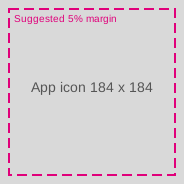
| App icon | 184 x 184 | Expected | Library list, chat, notifications |
The rules that apply to every image
- Capsules carry only the game's name and an official subtitle as text: no review scores, awards, discount copy or calls to action. Valve's Store Graphical Asset Rules have applied since 1 September 2022, and non-compliant games can lose visibility and featuring.
- The library hero has no words at all; the library logo goes on top of it as its own transparent image.
- Screenshots show gameplay only, with at least four marked suitable for all ages.
- Everything is PG-13 appropriate and at the exact dimensions.
- Temporary text about updates goes on an Artwork Override, for up to a month, not on the standard capsules.
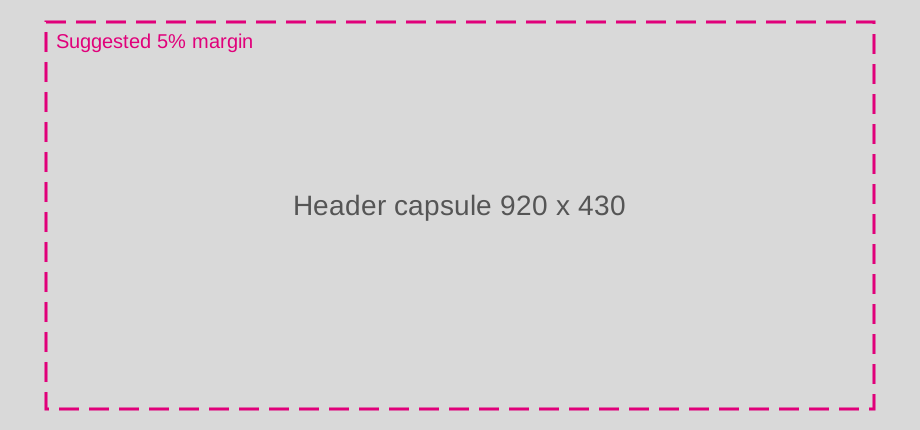
Header capsule: 920 x 430
Shown at the top of your store page, in Recommended For You, in Big Picture and in daily deals. Steam makes the smaller versions from it. No text beyond the game's title; the logo must read clearly over the art.
Template: PNG · SVG with labels
Small capsule: 462 x 174
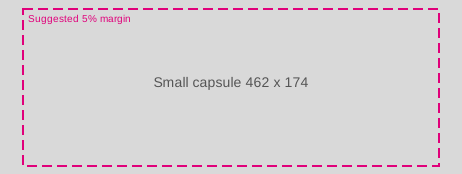
Shown in lists: search results, top sellers, new releases. Steam also makes 184 x 69 and 120 x 45 versions from it, so Valve asks that the logo nearly fill it. This is the asset most players see first; test it at 120 x 45.
Template: PNG · SVG with labels
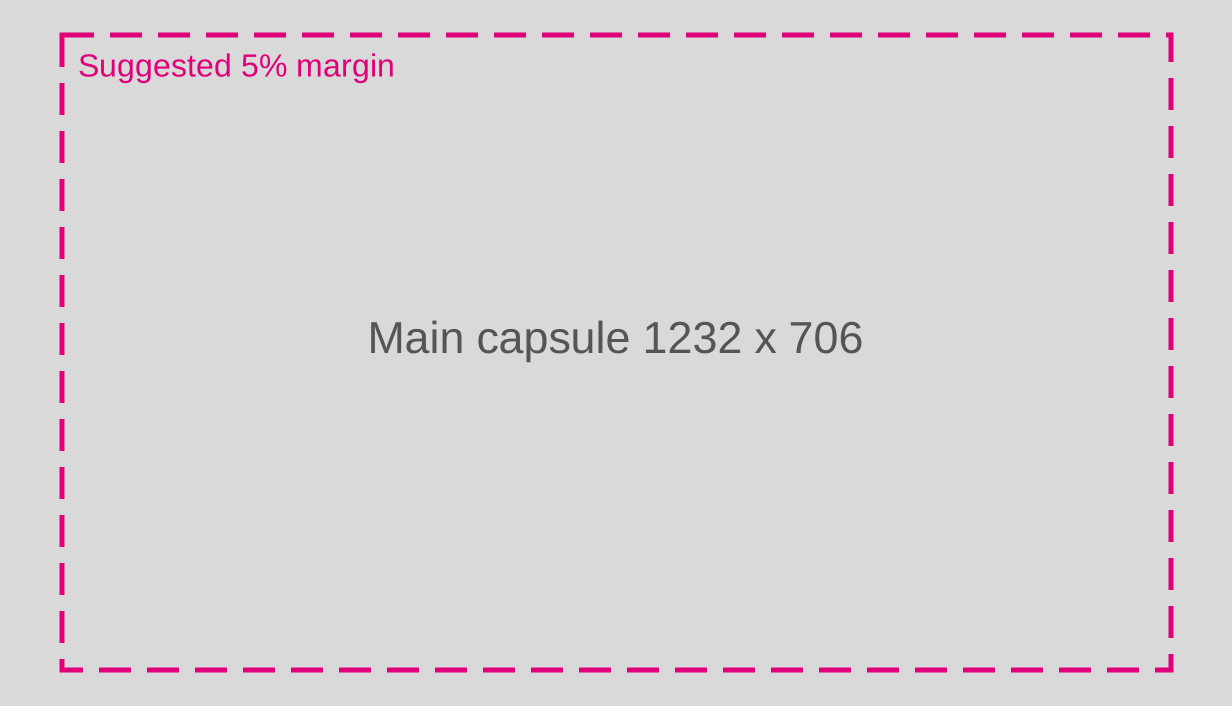
Main capsule: 1232 x 706
Shown in the carousel at the top of the Steam home page. No text beyond the title.
Template: PNG · SVG with labels
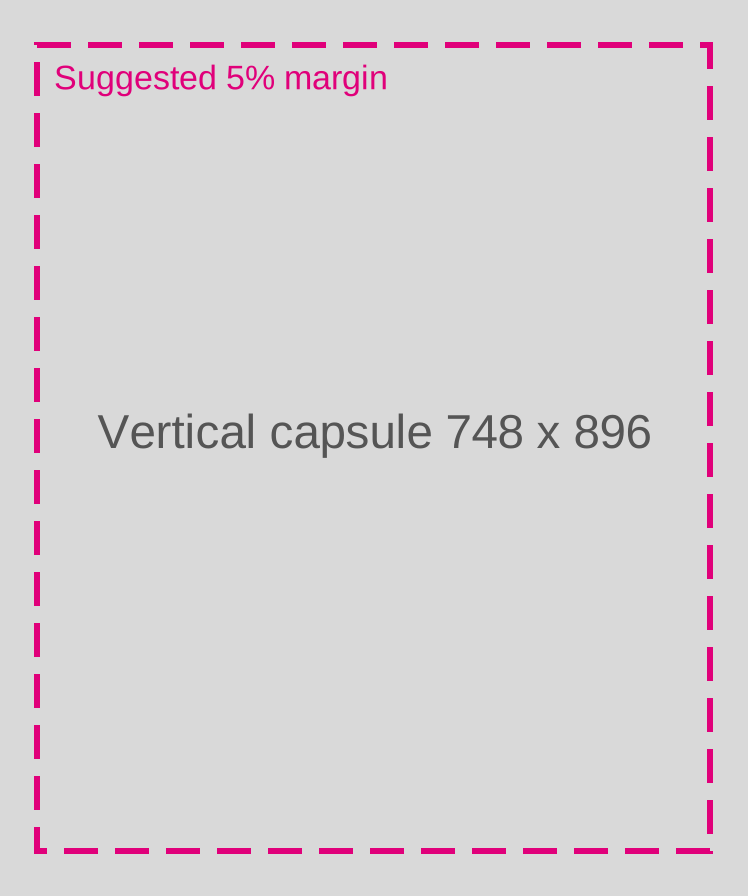
Vertical capsule: 748 x 896
Shown at the top of the front page during seasonal sales and on newer sale pages. No text beyond the title.
Template: PNG · SVG with labels
Screenshots: 1920 x 1080, at least five
16:9, 1920 x 1080 or larger, gameplay only: no awards, marketing copy or concept art. Mark at least four as suitable for all ages, or they may not show in some places, including the front-page hover. See how many screenshots a Steam page needs.
Template: PNG · SVG with labels
Page background: 1438 x 810
Optional. The background of your store page; Valve asks that it be ambient, and applies its own template over your upload.
Template: PNG · SVG with labels
Library capsule: 600 x 900
Shown in the library's overview and collections; Steam makes a 300 x 450 version. Use the key art and logo, no text beyond the title.
Template: PNG · SVG with labels
Library header: 920 x 430
Shown in the library, including Recent Games. If you leave it empty, Steam uses the store header capsule.
Template: PNG · SVG with labels
Library hero: 3840 x 1240, safe area 860 x 380
Shown across the top of a game's library page; Steam makes a 1920 x 620 version. The window crops it as it resizes, so keep faces and key detail inside the centred 860 x 380 safe area. No text at all: the logo goes on top as its own asset.
Template: PNG · SVG with labels


Library logo: 1280 wide or 720 tall
A transparent PNG of the logotype (and optionally a logomark), placed over the hero. Choose its position (bottom left, or centred top, middle or bottom) in Steamworks' preview.
Template: PNG · SVG with labels
Event cover: 800 x 450, and header: 1920 x 622
The cover shows in recent announcements on your store page, in event lists and on your library page; Steam adds your game's name and icon beside it. The header sits at the top of the event page.
Template: PNG · SVG with labels
Template: PNG · SVG with labels
Icons: shortcut 256 or 512, app icon 184
The shortcut icon is 256 x 256 or 512 x 512, ICO or PNG (Steam makes the .ico from a PNG), plus an ICNS for macOS shortcuts. The app icon is a 184 x 184 JPG shown in the library list, chat and notifications.
Template: PNG · SVG with labels
Template: PNG · SVG with labels
Making the whole set from one key art
Most teams make every capsule from one piece of key art, or one great frame of the game, plus a logo on a transparent layer. A workflow that keeps the set consistent:
- Make the key art large and wide, at least 3840 pixels across, with the subject placed so it survives both a wide crop (header, main, hero) and a tall one (vertical, library capsule).
- Keep the logo separate, as a transparent PNG, so it can be placed and scaled per asset instead of baked in.
- Crop each asset from the template, checking the safe area on the library hero.
- Design the small capsule separately: the logo nearly filling it, the art reduced to a colour field or silhouette.
- Export at exactly the size, in sRGB, as PNG or high-quality JPG; check every file's pixel dimensions before uploading.
- Preview in Steamworks and look at the small capsule at list size next to other games.
Mistakes that send assets back
- A size that is close but not exact, such as a 920 x 432 export from a crop tool.
- Text on a capsule beyond the name: a tagline, "Early Access", a laurel or a score.
- A logo on the library hero, which then doubles up with the library logo.
- Faces outside the hero's safe area, cropped off on narrower windows.
- Concept art in the screenshots.
- A dark capsule that disappears on Steam's dark pages.
Where Flockbay fits
Flockbay's Steam page drafts the capsules and library art at these sizes from one real frame of your game, with the logo as its own layer, and packs them in the .zip you upload to Steamworks yourself. Preparing the page by hand and the export are free; drafting by Flockbay is free in beta until 1 December 2026.
Questions
- What size is the Steam header capsule?
- 920 by 430 pixels. The small capsule is 462 by 174, the main capsule 1232 by 706 and the vertical capsule 748 by 896.
- What size is the Steam library hero?
- 3840 by 1240 pixels, with no text. Keep key detail inside the centred 860 by 380 safe area, because the window crops it as it resizes.
- What size are Steam screenshots?
- 1920 by 1080 or larger, in 16:9, at least five, gameplay only, with at least four marked suitable for all ages.
- Can I put text on Steam capsules?
- Only the game's name and an official subtitle. Review scores, awards, discount text and calls to action are not allowed on store capsules.