
Editor
The editor: Minimal, Standard and Full views
Flockbay opens your project in the Godot editor that comes with it, with Flockbay’s chat docked beside it. Every project opens in the Minimal view, the chat and the Game screen, until you choose Standard, Godot’s editor without three docks, or Full, all of Godot’s editor. Play belongs to the app in every view.
The three views
| View | What it shows |
|---|---|
| Minimal | The chat and the Game screen only. Every project opens here until you choose another view, projects made elsewhere included. |
| Standard | Godot’s editor without the Asset Store, Import and History docks: the main menu, FileSystem, the Scene and Node docks, the Inspector, the Script editor, the scene tabs and the bottom panel with Output and the Debugger, beside the viewport and the chat. |
| Full | All of Godot’s editor: every dock, open as Godot lays them out and yours to move, float and close, the Asset Store, and the bottom panel with Output, Debugger, Audio, Animation and the Shader Editor. |
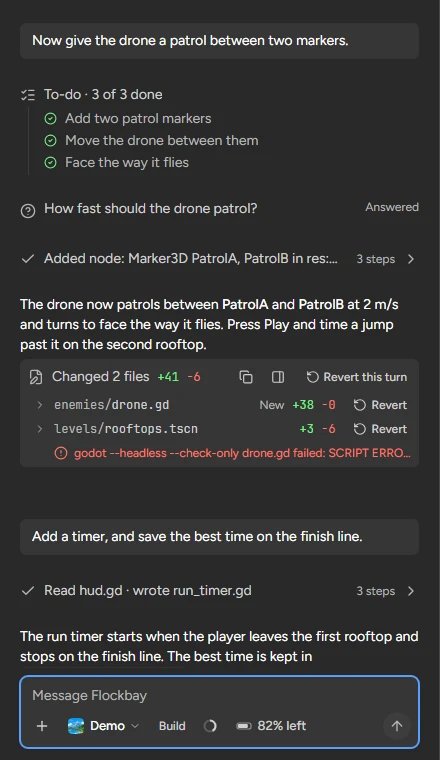
In every view, Godot’s run bar and its own Game tab are put away, because Play is the app’s. Flockbay adds the chat and the Game screen in the row of screens where Godot’s Game tab would be.
Switching views
The switch is at the right end of the editor’s title bar, reading Minimal, Standard or Full; its tooltip says what each keeps. A change there applies at once, with no restart. In Minimal, a hint at the top of the chat says Standard and Full add Godot’s Scene dock, Inspector, FileSystem and Script editor, with Change view… and Dismiss.
Settings › Editor view makes the same choice for every project, used the next time a project opens. Godot’s command palette (Ctrl⌘+Shift+P) has Switch Editor View (Minimal/Standard/Full).
The chat dock
In Minimal and Standard, the chat is the leftmost column. In Full it is a dock like any of Godot’s: it closes, moves and floats from its dock menu, shows its tab, and is listed in Editor › Editor Docks. Focus Chat (Ctrl⌘+Alt+I) brings it back wherever it last was. A switch to Minimal or Standard puts it back in the left column.
The dock’s menu has Move chat into Flockbay window, and the window has Move chat into editor to bring it back. The chat keeps its draft, queue and files when it moves. Publishing Tools is one of the editor’s main screens, beside 2D, 3D, Script and Game; Playtests and the rest of Flockbay’s screens are in Flockbay’s own window.
Where the editor window is too narrow for a column of docks on each side plus the chat, Flockbay folds the docks into one column, or under the chat. Editor › Editor Layout › Default gives Godot’s own arrangement back.
Play is the app’s
F5 plays the main scene and F8 stops, from anywhere in the editor, and every Play is one fresh run in Flockbay’s Game screen. Run Current Scene (F6) and Run Specific Scene play the scene they name there, and so does a plugin’s own run, such as a test runner’s. Godot’s own runner never starts a game the app does not know about.
Play attaches the game to the editor’s debugger as Godot’s runner does: a script error stops at its line, prints show in Output, which Play brings forward per Editor Settings › Run › Bottom Panel › Action on Play, and breakpoints stop the game. Play and debug has the rest.
Reload Current Project and Quit to Project List close the editor rather than start another one; open the project again from the app. Project › Export is Godot’s own dialog: the first time, Godot asks for export templates through Manage Export Templates. Export in Publishing tools downloads them for you: Export.
An unsaved edit is never dropped
When your AI changes a file you have open with unsaved edits, Godot’s own dialog, "Files have been modified outside Godot", asks which to keep. A file with no unsaved edits follows the change on disk without asking. Play never saves over a file that changed on disk.
The editor’s settings here are the app’s own, kept apart from a Godot you installed yourself. Where scripts and file:line links open is Settings › Developer › External editor: Projects on disk.
Import from this computer
Drag files from your computer into Godot’s FileSystem dock, in the Standard and Full views, and Godot imports them where you drop them, as in any Godot project.
Imported files are yours. An app update never overwrites them, and Uninstall Flockbay from project… does not take them out.
AppImage, x86_64. Ubuntu 22.04, Debian 12, Fedora 39 or newer.
Intel or AMD Chromebook, with Linux turned on.